
 Re-Flash Programming : A Controller or Display can be updated with the latest firmware
This function upgrades both controller & display code/program (or flash) memory
as well as EE data (or EEPROM data memory).
This is normally only necessary when new features or fixes are released.
See the HXF file page for the code available.
 Note : Using this utility, it is possible to swap between firmware designed
for a Bosch LSU LSU-4.2 and LSU-4.9 sensor, and also to firmware for NTK L1H1 sensors, but REMEMBER
that if you do this, typically, you must also change hardware jumpers within the controller.
Note : Using this utility, it is possible to swap between firmware designed
for a Bosch LSU LSU-4.2 and LSU-4.9 sensor, and also to firmware for NTK L1H1 sensors, but REMEMBER
that if you do this, typically, you must also change hardware jumpers within the controller.
Display Note : Re-flashing a display requires a reprogramming adaptor. A display must NOT be connected to a controller for reflashing - attempting this may damage the display and/or controller! Warnings - Read and understand!
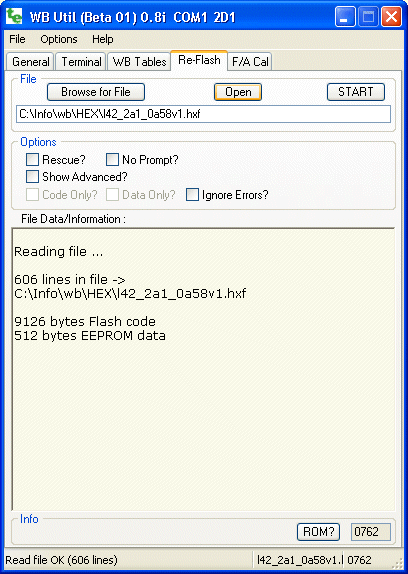
Basic Operations OverviewAn encrypted ASCII/BIN .HXF file is read, converted to raw binary data and sent to the device to be re-programmed. This is a two step process where code and/or data is programmed. Normally EE memory is what is corrupted but there is a close relationship between the two parts, and despite having the option of flashing each individually, normally both should be reflashed. The screen shows a Browse for File ... button to select the .HXF file containing both the code and the data. The file will be automatically opened and checked for errors. Errors, and file statistics, are shown in the File Data/Information area. The screen shows the HXF file contains 606 lines of text that generated a code size of 9,126 bytes and EEPROM (data) size of 512 bytes. The Open button simply re-reads and displays statistics for the currently selected file. The following flash options can be selected :
|
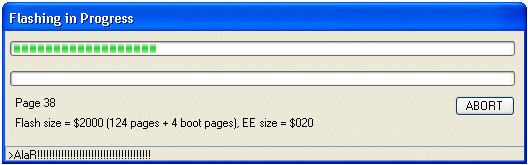
File OperationsThere are a number of ways to open an HXF file. As note above, the Browse for File ... button, but you can also drag and drop a file into the large File Data/Information : area. The Open button simply opens and checks the currently listed file, but note that the checks performed are also done when the START button is pressed.As each block of flash memory is downloaded and successfully programmed, an acknowledgement is displayed. While the flash programs in a few seconds, the EE memory takes a lot longer. |
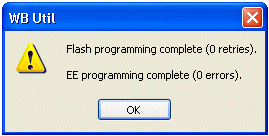
At completion of the flash and EEPROM programming the message box Programming Complete pops up. The total number of retries for both flash and EEPROM are shown in the message. After clicking on the OK button that's all that has to be done. |
Advanced Operations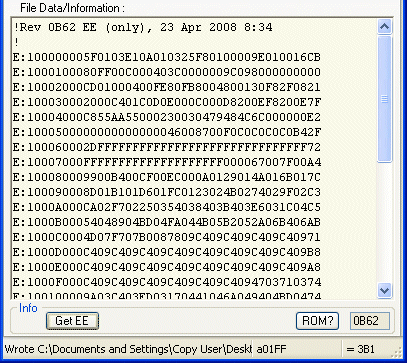
At the bottom of the screen, in the Info area, a number of special operations can be performed. The [ROM?] button tries to read the ROM version and to then calculate the type of device attached. This is displayed in the status area of the display (note: device selection is not automatically performed as for the [?] button on the General tab). The [Get EE] button is only active when the Show Advanced? box has been checked. This button reads the EE (ie. data) memory, displays it in .HXF file format, and also writes it to the file (with default name of) ~EE.hxf in the installation directory for wbUtil. |